
Welcome & leave messages
Welcome new members and let your community know about departures with messages that personalise themselves automatically.
In the sidebar, open Community → Announcements & Auto-Role (Open Announcements ↗), then pick the Welcome or Leave tab. The page has three more tabs, described further down.
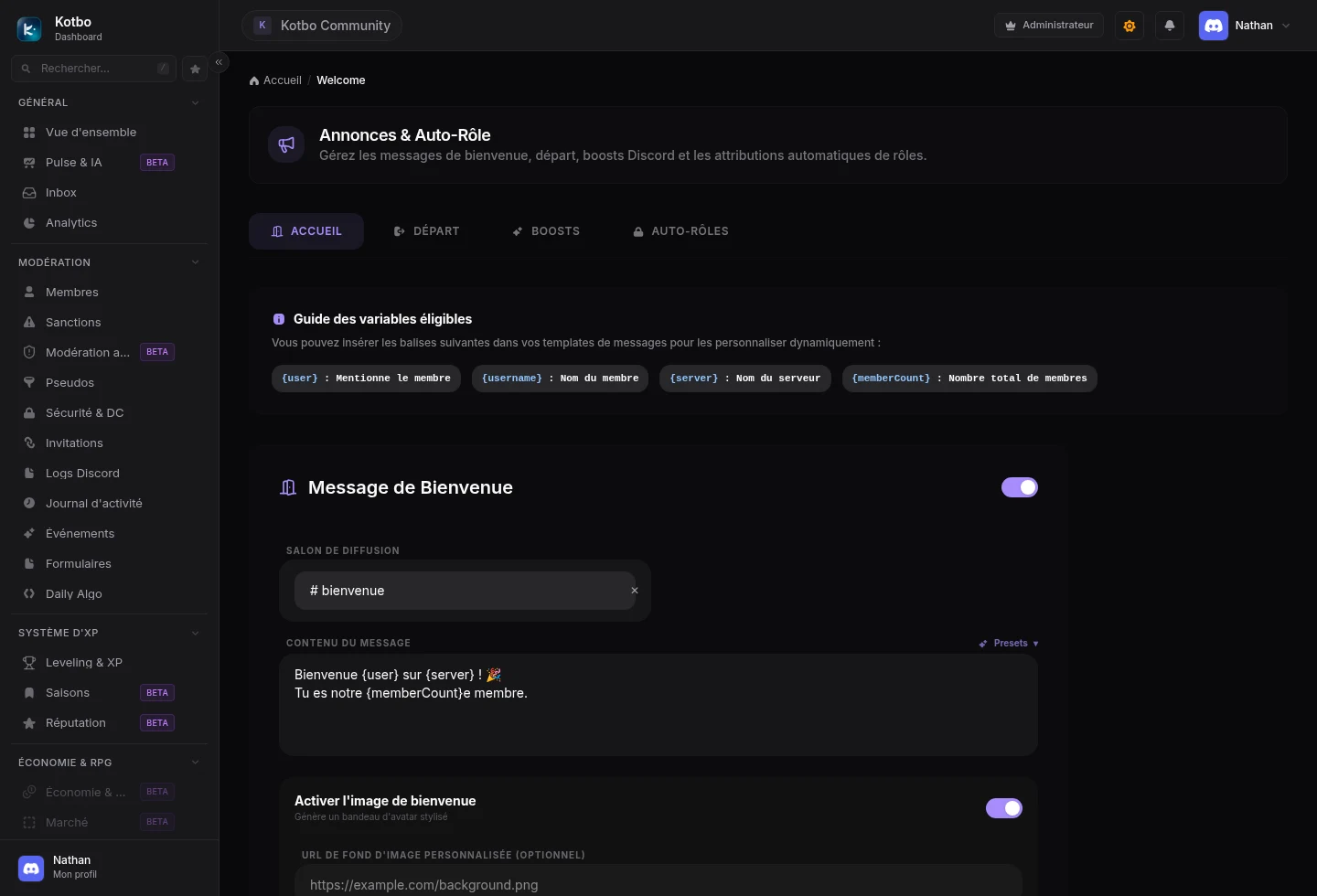
Configure the welcome message
Section titled “Configure the welcome message”Open the “Welcome” tab
In Announcements & Auto-Role, the tab sits just below the page title.
Turn on “Welcome Message”
The toggle is in the top right of the block.
Choose the channel to post in
Pick a text channel that new members can see, for example #welcome.
Write the message
Add the variables below so the text adapts automatically to each arrival.
Check the preview, then save
The Discord preview refreshes on the page. Click Save in the bottom bar.
Available variables
Section titled “Available variables”| Variable | Result |
|---|---|
{user} | Mentions the member, for example @JohnDoe. |
{username} | Shows their name without a mention. |
{server} | Shows your server’s name. |
{memberCount} | Shows the total number of members. |
Example:
Welcome {user} to {server}!You are our member number {memberCount}!Add a welcome image
Section titled “Add a welcome image”Turn on Welcome image to attach a banner featuring the new member’s avatar. You can supply a custom background image URL; without one, Kotbo uses its default artwork.
Configure the leave message
Section titled “Configure the leave message”Open the Leave tab at the top of the same page. The form works the same way: enable the message, choose a channel and write the text. The {user} variable may no longer produce a clickable mention once the member has left; use {username} if you only want to show the name.
The other tabs on the page
Section titled “The other tabs on the page”The Announcements & Auto-Role page is not limited to welcome and leave: it has five tabs.
Auto-Roles
Section titled “Auto-Roles”Three automatic role assignments, independent from each other. Each one can be left on None (Disabled).
- Join Auto-Role: assigns a role to any new member joining the server.
- Server Tag Auto-Role: assigns a role to members displaying the server’s official tag on their Discord profile. The role is removed as soon as the member drops the tag.
- Presence Keyword Auto-Role: assigns a role based on what the member shows in their Discord presence.
- Keyword to detect: the text being searched for, for example
.gg/kotbo. - Where to look: Custom status, Current activity, or Both.
- Keyword to detect: the text being searched for, for example
Boosts
Section titled “Boosts”The Custom Boost Announcements tab lets you publicly thank members who boost the server, with its own message and its own channel. The Enable boost image option attaches a generated visual.
Welcome Thread
Section titled “Welcome Thread”Kotbo can open a private thread for each new member and run a welcome script inside it.
- Message sequence: the messages sent in order, before the final menu. Every message in the sequence must have content, otherwise saving is refused. With no sequence, the bot goes straight to the final menu.
- Menu introduction pages: each page becomes a button or an option in the final menu. With no page configured, the final menu shows no buttons.
- Click action: Display embed, Manage role, or Link.
- Typing indicator: displays “is typing” before each message, for a more natural feel.
- Auto-archive: closes the thread after the chosen period.